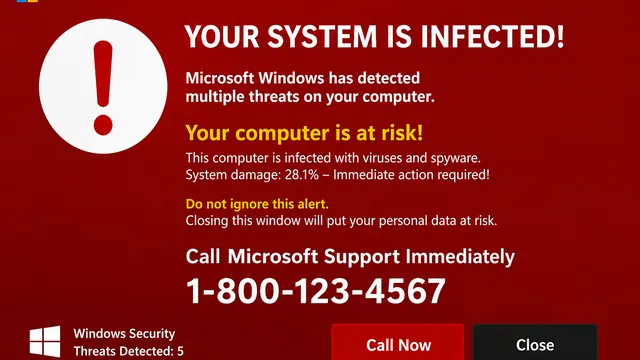
It can be alarming when your computer suddenly starts talking, beeping, or displaying messages that claim your computer has been infected. Some people hear a voice saying their computer is at risk or that "Microsoft has been compromised." In many cases, these messages are designed to scare you into calling a fake support number or paying for unnecessary services.
The good news is that staying calm and following a few simple steps can help protect both your computer and your personal information.
Step 1: Don't Panic
Scare tactics are one of the most common tricks used by scammers. A loud alarm or flashing warning does not necessarily mean your computer has a virus.
Avoid clicking buttons, calling phone numbers displayed on the screen, or downloading software suggested by the warning.
Step 2: Disconnect from the Internet
If possible:
- Turn off Wi-Fi.
- Unplug any network cable.
- Disconnect external drives if they are attached.
This helps prevent malicious software from communicating with the internet while you investigate.
Step 3: Close the Browser
Many fake virus warnings come from a web page rather than your computer.
Press "Ctrl + Alt + Del" to open Task Manager.
Select your web browser (such as Microsoft Edge, Google Chrome, or Firefox) and choose **End Task**.
If the warning disappears, it was likely a scam website rather than a computer infection.
Step 4: Restart Your Computer
Restart your laptop normally.
If the warning does not return, open your browser again but avoid restoring the previous tabs that were open.
Step 5: Run Windows Security
Windows includes built-in virus protection.
- Open Settings.
- Select Privacy & Security.
- Choose Windows Security.
- Open Virus & Threat Protection.
- Run a Full Scan.
Allow the scan to finish, even if it takes an hour or more.
Step 6: Update Windows
Keeping your computer up to date is one of the best defenses against malware.
Go to Settings > Windows Update and install any available updates.
Step 7: Change Passwords If Needed
If you entered passwords, gave someone remote access to your computer, or shared financial information during the incident, change your passwords immediately from a different, trusted device.
Start with your email account, then update passwords for banking, shopping, and other important accounts.
Step 8: Ask for Help
If your computer continues displaying warnings after restarting, or if you're unsure whether it's safe to use, ask someone you trust for assistance. Many local libraries, Extension offices, schools, and community technology programs offer digital literacy support.
Remember
Most "Your computer is infected!" warnings are designed to frighten users into making quick decisions. The best response is to stay calm, disconnect from the internet, close the browser, restart your computer, and run Windows Security.
A few careful steps can often resolve the problem without paying for expensive repairs or becoming the victim of a scam.